The first time you log into Showit, it feels a little like walking into an empty studio. There’s so much space, so many panels, and a quiet voice in your head asking where you’re even supposed to start.
I’ve built a lot of Showit websites, and I still remember that feeling. Showit is one of my favorite platforms for creative businesses, but the freedom that makes it great can also make the first hour overwhelming.
So this is the guide I wish more people had. It covers how to get started on Showit in the order I’d actually do it, from signing up to hitting publish. Follow along step by step and your site will come together intentionally instead of in random bursts of late-night tweaking.
What You Need Before You Set Up Your Showit Website
Before you create an account, gather your ingredients. This one step is the biggest difference between a site that comes together in two weeks and one that drags on for two months.
Here’s what I’d have ready: your logo, your brand colors and fonts, a folder of photos you love, and at least rough copy for your main pages. If you already own a domain, have your login for wherever you bought it.
The copy is the one people skip. I’ve watched so many clients open a beautiful template and freeze because they don’t know what to write in the headline. The design can’t do its job until the words exist, even if they’re messy first drafts.
Step 1: Start Your Showit Free Trial and Choose a Plan
Showit gives you a 14-day free trial, and you don’t need a credit card to start it. Head to showit.com, click the button to create your site, and enter your email. Once you confirm your account, you’ll land in the Showit design app.
Use those 14 days well. You don’t have to commit to anything while you explore, so this is the perfect time to get comfortable before you’re paying for it.
Which Showit Plan Do You Actually Need?
Showit has three main plans: one without a blog, one with a basic blog, and one with an advanced blog. The difference comes down to whether you plan to write blog posts and how much you need from that blog.
My honest opinion is that if you care about showing up in Google, choose a plan with a blog. Blogging is one of the most reliable ways for a small creative business to get found, and adding it later is more hassle than starting with it.
Prices change from time to time, so check the current numbers on Showit’s pricing page before you decide.
Step 2: Choose Your Starting Point
Once you’re in, you’ll need to decide how to begin. There are three ways to start a Showit website, and the right one depends on how much design experience you have and how much time you want to spend.
Starting With a Free Showit Design
Showit includes free designs you can use right away. They’re a good option if you want to explore the platform and learn how a well-built site is structured. Most people eventually outgrow them, but they’re great training wheels.
Importing a Showit Template You Bought
If you purchased a template, this is where you bring it in. Every Showit template comes with a share key, which is basically a code that copies the design into your account.
In the design app, open your designs, choose Add to Design Library, and paste in your share key.
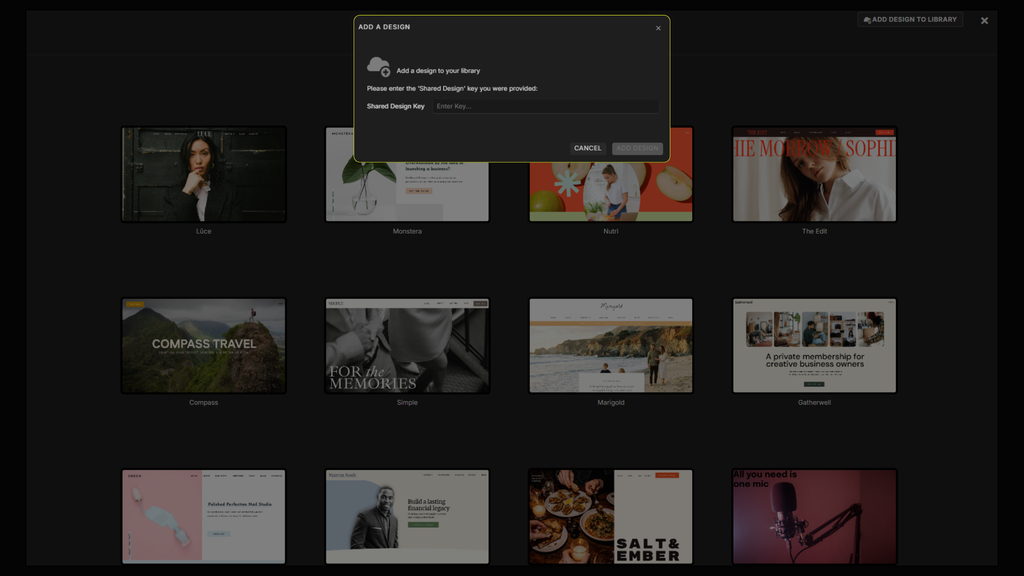
Preview the design, add it to your library, then select your site and choose to start with that design. That’s it. Your template is now ready to customize.
If you’re still weighing whether a template is right for you, I wrote about why Showit templates are a smart, affordable option.
Starting From a Blank Canvas
You can also start completely from scratch. I’ll be honest, though: unless you have design experience, I wouldn’t. A blank canvas sounds freeing, but it puts every single decision on you, from spacing to layout to hierarchy. A template gives you a tested structure you can make your own.
Step 3: Learn How to Use the Showit Design App
Before you start changing things, take five minutes to get oriented. Here’s the whole workspace at a glance.
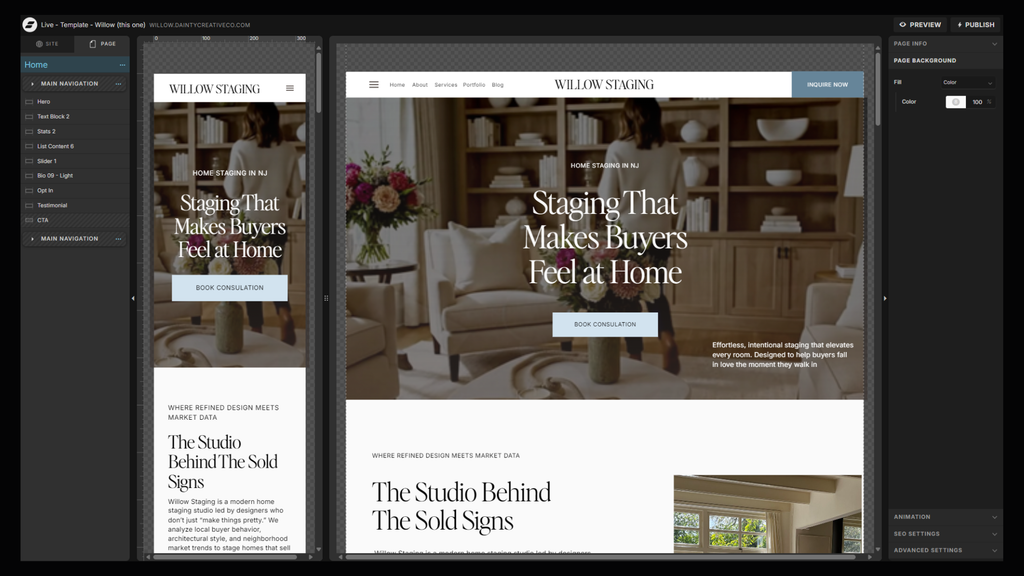
Once you know what each area does, the app stops feeling crowded and starts feeling like a really well-organized desk.
The Left Panel: Pages, Canvases, and Layers
The left side is your map. It lists every page on your site, and within each page, the canvases that make it up. A canvas is one horizontal section of a page, like your hero area or your testimonials block. Below that, you’ll see the layers inside whatever you’ve selected, which is handy when elements are stacked on top of each other.
Switching Between Desktop and Mobile
At the top, you’ll find a toggle between desktop and mobile views. This matters more in Showit than on most platforms, because your desktop and mobile layouts are designed separately. Changing something on desktop doesn’t automatically rearrange it on mobile. We’ll come back to this, because it’s important.
The Right Panel, Where the Detail Work Happens
When you click on any element, the right panel shows its settings: size, position, alignment, colors, fonts, and more. This is where most of your fine-tuning happens.
Preview vs. Publish
In the top right corner, you’ll see two buttons. Preview lets you see your site the way a visitor would, without making anything live. Publish pushes your changes to your actual website. Preview often. Publish when you’re sure.
Step 4: Set Your Brand Styles Before You Design a Single Page
If you take one tip from this whole guide, make it this one. Before you edit any page, open your design settings and set your brand colors and font styles.
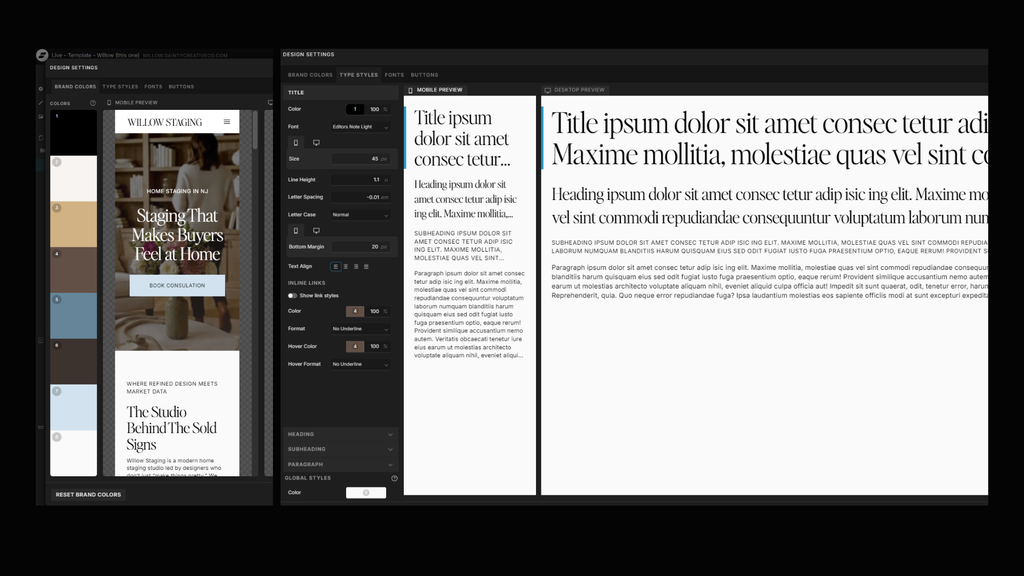
Here’s why it matters. When your colors and fonts are set at the site level, every page that uses them updates at once. Change your heading font in one place and it changes everywhere.
When people skip this step, they end up restyling headings one by one across every page. It’s tedious, and it’s how you end up with three slightly different shades of blush on the same site. Setting styles first keeps everything consistent and saves you hours.
Step 5: Make the Pages Your Own
This is the fun part. The goal is to take a template and make it feel like home, so it looks like it was tailor-made for your business rather than borrowed from someone else’s.
Swapping In Your Own Words and Photos
Click any text box to edit it, and replace the placeholder copy with your own. For images, upload your photos to the media library and swap them in. Try to match the general shape of the original image, because a landscape photo squeezed into a portrait frame will crop in ways you won’t love.
Adding, Duplicating, and Rearranging Canvases
Need another section? You can add a new canvas, duplicate an existing one, or drag canvases into a different order. Duplicating is my favorite shortcut, because the new section keeps all the styling and spacing from the original.
Setting Up Links and Buttons
Select a button or text link, then set its click action in the right panel. You can link to another page on your site, an outside website, an email address, or a specific spot on the same page. Click through every button in preview to make sure each one goes where it should.
Don’t Skip Your Mobile Layout
This is the step I see skipped most often. I once reviewed a site for a photographer whose desktop version was gorgeous. On her phone, though, her headline ran off the screen and her booking button was hiding under a photo. She’d never checked, and most of her visitors were finding her on Instagram, which means on mobile.
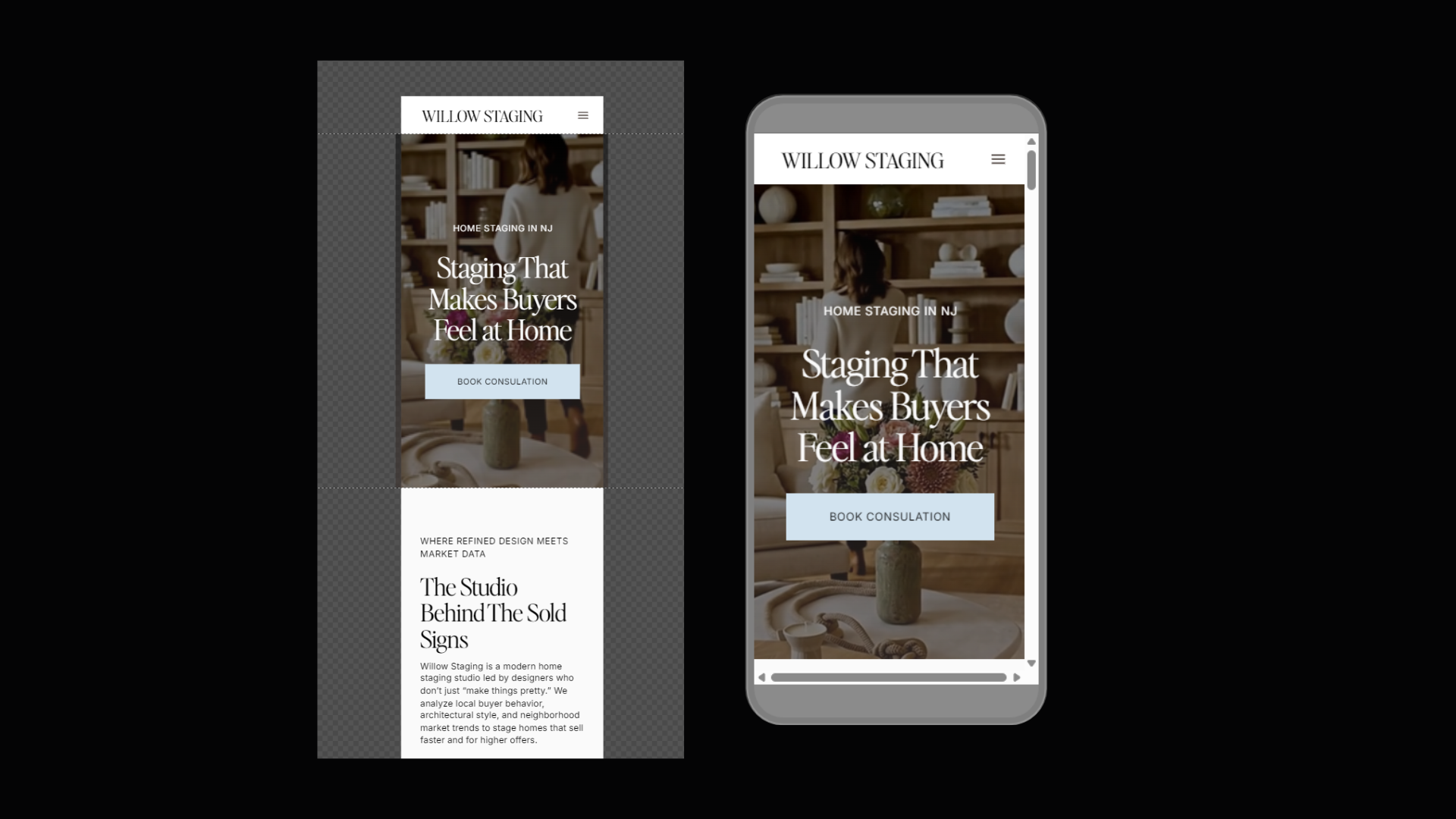
Because Showit treats mobile as its own design, switch to mobile view after you finish each page on desktop. Resize text, rearrange elements, and hide anything that doesn’t need to be there. It takes a little extra time, and it’s worth every minute.
Step 6: Fill In Your Showit SEO Settings
SEO settings are easy to forget because they don’t change how your site looks. But they decide how your pages show up in Google, and skipping them is one of the most common gaps I find when reviewing websites.
Page Titles and Meta Descriptions
Every page in Showit has its own SEO settings, including a page title and a meta description. The title is the clickable headline people see in search results, and the description is the short summary underneath.
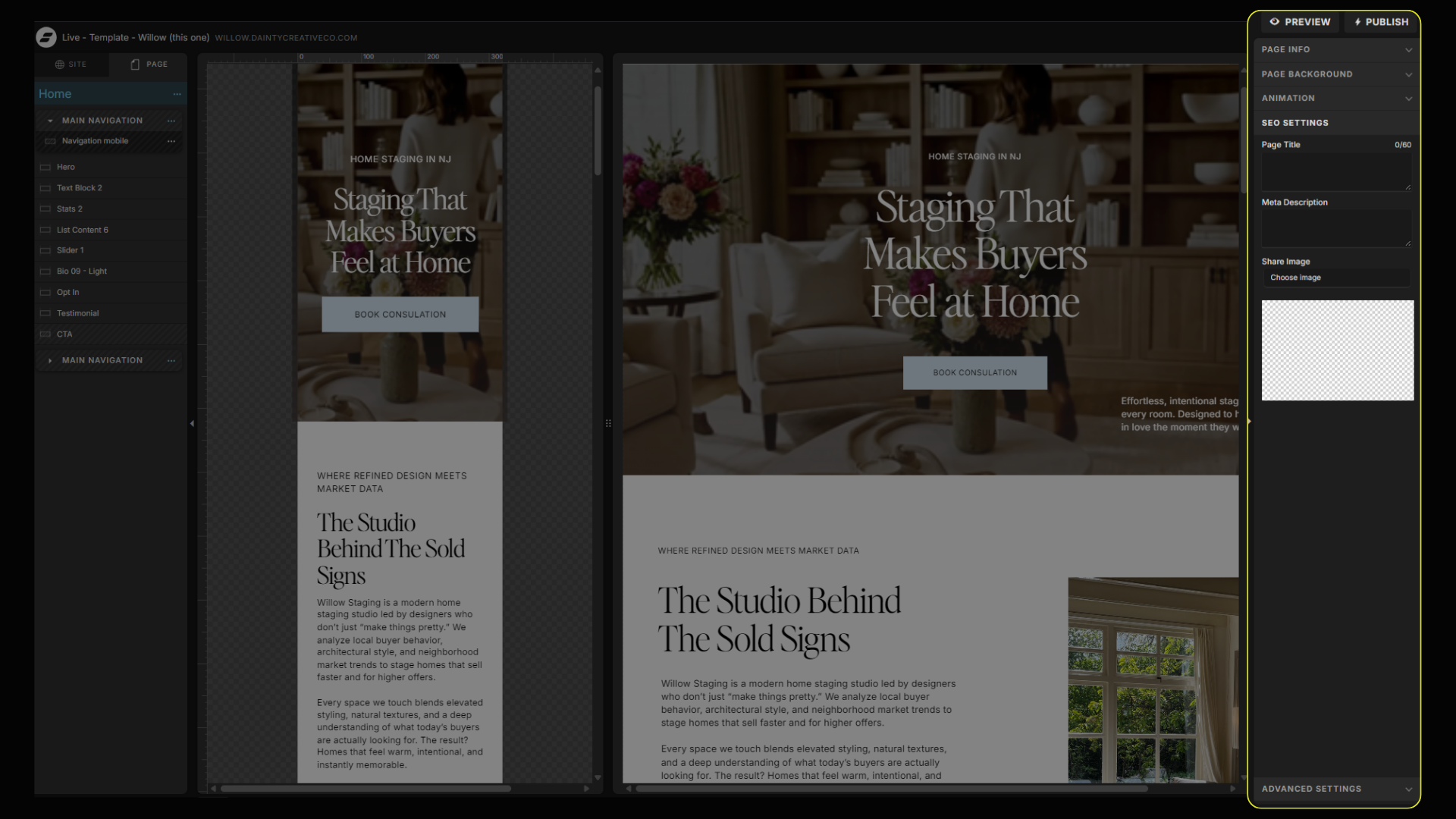
Write a unique title and description for every page, describing what that page actually offers. “Home” is not a page title. “Wedding Photographer in Austin, Texas” is. If you want to go further, here’s how SEO and AI search visibility work together.
Favicon and Social Share Image
While you’re in settings, add a favicon, which is the tiny icon that appears in browser tabs. Then set a social share image so your links look polished when someone posts them on social media or sends them in a text.
Step 7: Set Up Your Blog (If Your Plan Includes One)
If you chose a plan with a blog, Showit splits the work in two. You design how your blog looks inside Showit, and you write and publish posts in WordPress, which Showit connects for you behind the scenes. You get Showit’s design freedom and WordPress’s blogging power in one site.
If you started with a template, it likely came with a few demo posts. Delete those before you launch so visitors aren’t reading placeholder content.
If your plan doesn’t include a blog, skip ahead.
Step 8: Connect Your Domain and Go Live
To make your site live at your own web address, you’ll connect your domain in Showit’s site settings. The exact steps depend on where you bought your domain, so follow Showit’s help page for your specific registrar.
Before you hit publish, do one last pass in preview. Click every link and button. Submit your contact form to make sure it actually reaches you. Then check every page on mobile one more time. When everything looks right, publish, and celebrate. You built a website.
When It Makes Sense to Bring In a Designer
Not everyone wants to spend their evenings learning a new platform, and that’s completely fine. If you got halfway through this guide and your site still doesn’t feel like you, that’s often a sign it’s time for a second set of hands.
If you already have a template, our template customization service takes it from half-finished to launch-ready. And if you’d rather have the whole thing done for you, our website design packages, including Website in a Day and Website in a Week, are built for exactly that.
Getting started on Showit is mostly about doing things in the right order. Gather your content, set your styles, design desktop and mobile, then take care of SEO before you launch. And if you’d love a site that feels like home without doing it all yourself, let’s talk.
Is Showit beginner-friendly?
Yes, especially if you start with a template. Showit is drag-and-drop, so you don’t need to know any code. The learning curve is mostly about understanding the design app layout and remembering to design your mobile version separately.
How long does it take to set up a Showit website?
With a template and your content ready, many people can get a simple site live within a week or two. Starting from a blank canvas, or writing copy as you go, usually takes much longer.
Can I switch templates later?
You can import a new design into your library at any time. Keep in mind that switching templates means rebuilding your pages in the new design, so it’s a bigger project than changing a few colors.
Do I need to know WordPress to blog on Showit?
Not really. You’ll write posts in WordPress, but the editor is simple to use, and you won’t have to touch any of WordPress’s technical setup. Showit handles that part.
Can I use a domain I already own?
Yes. You can connect a domain you bought elsewhere through Showit’s site settings. You don’t need to buy a new one.